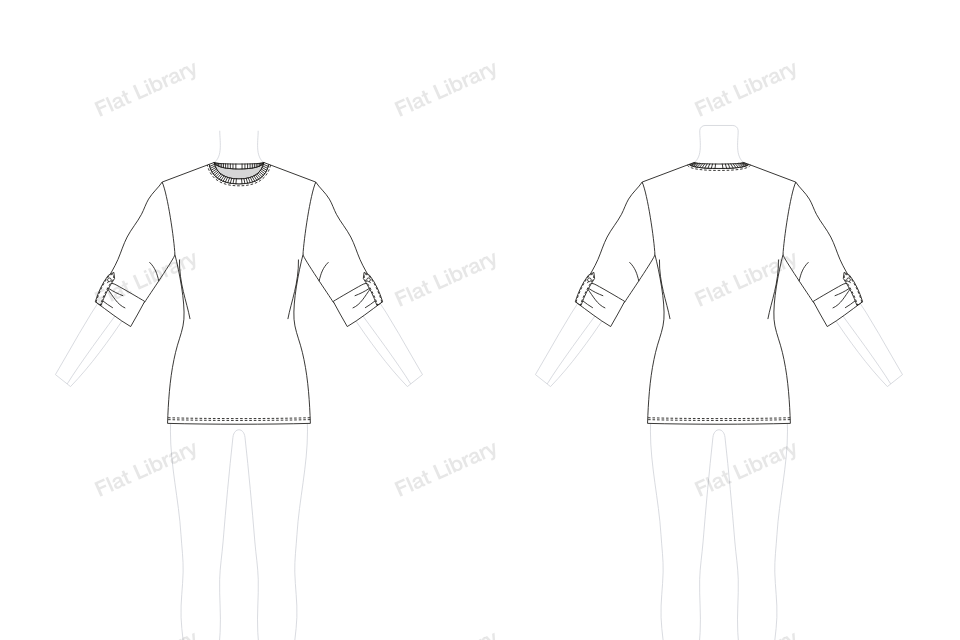
Sleeves
Rolled Sleeve, Button Tab
The Rolled Sleeve, Button Tab is one of the more decorative sleeves in the library, with a detail that does most of the work.
- Views
- Front and back, drawn together
- Named layers
- Sleeve L, Sleeve R, Body, Inside Back Neck and Neckband
- Anchors
- 180 on the front, only where a line turns
- File
- Editable vector in Adobe Illustrator
How to draw a rolled sleeve, button tab flat in Illustrator
- Open Flat Library in Adobe Illustrator and go to Tops or Dresses, then Sleeve.
- Choose Rolled Sleeve, Button Tab from the pictures. It is drawn on the template, front and back.
- Pull the blue points to change its length, width, neck and sleeve. The front and back redraw together, and the figure stops you going too tight.
- Insert it into your document as clean, named layers, and keep working by hand.
More sleeves
Puff Sleeve, Button TabPushed-up Raglan Sleeve, Rib CuffWide Batwing SleeveSlim Raglan SleeveDropped Sleeve, Turn-back CuffRaglan Balloon SleeveDouble Flutter SleeveStepped Batwing SleeveGathered Bell Sleeve, Stepped HemRuched Kimono Sleeve, LinedArmhole Frill, Eyelet Edge SleeveWide Raglan Sleeve, Band Hem